Chapter 1. Virtualization
Introduction and Learning Objectives
Introduction to Cloud Computing and Technologies
Historically, the word cloud was used as a metaphor for Internet. Later on, it was used to depict the Internet in computer network diagrams. To find out more about the origin of the cloud, you can take a look at the details provided on Wikipedia.
Cloud computing can be referred as the allocation of resources on the cloud. According to NIST (National Institute of Standard and Technology), the formal definition of cloud computing is the following:
“Cloud computing is a model for enabling ubiquitous, convenient, on-demand network access to a shared pool of configurable computing resources (e.g. networks, servers, storage, applications, and services) that can be rapidly provisioned and released with minimal management effort or service provider interaction”.
Cloud computing providers offer different kinds of services built on top of basic provisioning and releasing of resources. Most of these services fall into one of the following categories:
-
-
- Infrastructure as a Service (IaaS)
- Platform as a Service (PaaS)
- Software as a Service (SaaS).
-
We will cover these categories and others throughout the course. Most providers use some form of web interface, on top of which we can build the desired stack. Cloud providers use a pay-as-you-go model, in which we pay for the resources we have used in a given duration.
Key Features of Cloud Computing
Cloud computing provides key features such as:
-
-
- Speed and Agility The required resources are just one click away, which saves time and provides agility. We can also easily scale up or down, depending on our need.
- Cost It reduces the up-front cost to set up the infrastructure, and allows us to focus on applications and business. Cloud providers have features to estimate the cost, which helps us plan better.
- Easy Access to Resources As users, we can access our infrastructure from any place and device, as long as we can connect to the provider.
- Maintenance All the maintenance work for the resources is done by the provider. As end users, we do not have to worry about this aspect.
- Multi-tenancy Multiple users can use the same pool of resources.
- Reliability Resources can be hosted in different data center locations, to provide increased reliability.
-
Cloud Deployment Models
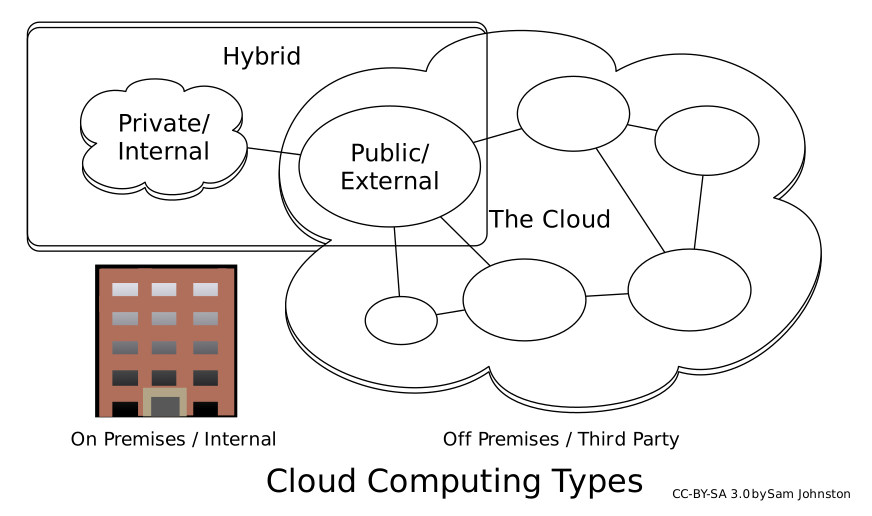
Generally, a cloud is deployed in the following models:
-
-
- Private Cloud It is designated and operated solely for one organization. It can be hosted internally or externally and managed by internal teams or a third party. We can build a private cloud using a software stack like OpenStack.
- Public Cloud It is open to the public and anybody can use it after swiping the credit card. Amazon Web Services and Google Compute Engine are examples of public clouds.
- **Hybrid Cloud **Public and private clouds are bound together to offer the hybrid cloud. Among other things, a hybrid cloud can be used to:
-
-
-
-
-
- Store sensitive information on a private cloud, while offering public services based on that information from a public cloud.
- Meet the temporary resources needed from the public cloud. These temporary resources cannot be met from a private cloud.
-
-
-
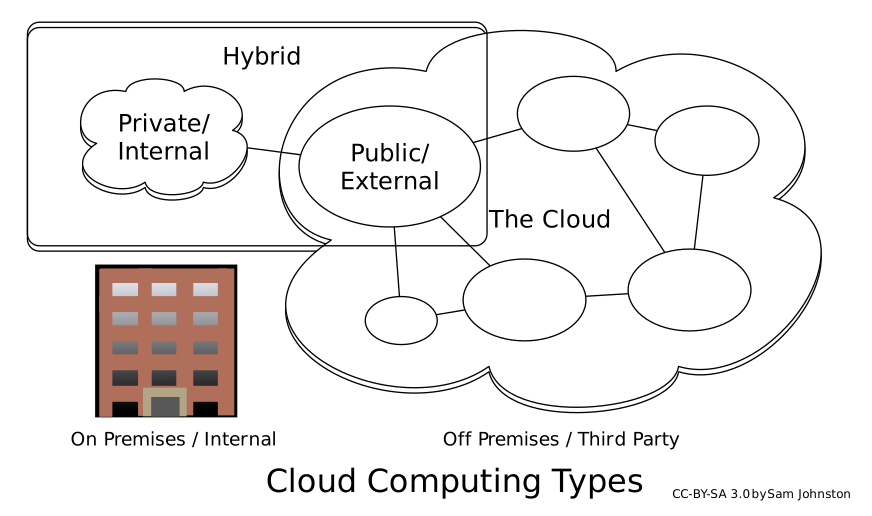
Cloud Computing Types (by Sam Johnston, licensed under CC BY-SA 3.0, retrieved from Wikipedia)
Virtualization
According to Wikipedia,
“In computing, virtualization refers to the act of creating a virtual (rather than actual) version of something, including virtual computer hardware platforms, operating systems, storage devices, and computer resources”.
Virtualization can be offered on different hardware and software layers, like Central Processing Unit (CPU), disk, memory, filesystems, etc. In this chapter, we will look at some examples of creating virtual machines (VMs) after emulating the different kinds of hardware to install a guest OS on them.
Virtual machines are created on top of a hypervisor, which runs on top of the host machine’s operating system. With hypervisors, we emulate hardware like CPU, disk, network, memory, etc., and install guest machines on it. We can create multiple guest machines with different operating systems on a hypervisor. For example, we can take a Linux machine running on bare metal and, after setting up the hypervisor, we can create multiple guest machines with Linux and Windows operating systems. Some examples of hypervisors are:
-
-
- KVM
- Xen
- VMWare
- VirtualBox
- Hyper-V.
-
We can find support for hardware virtualization in all recent CPUs, as it is important to share the host system’s processor resources with multiple guest operating systems in a safe and efficient way. Most of the recent CPUs will also support nested virtualization, which enables us to have a VM inside a VM.
Next, let’s take a look at a few examples on how to create VMs on top of different hypervisors.
Learning Objectives
By the end of this chapter, you should be able to:
-
-
- Describe the different types of virtualization.
- Explain how hypervisors can be used to create virtual machines.
- Create and configure virtual machines automatically, using KVM, VirtualBox and Vagrant.
-
KVM
Introduction to KVM
According to linux-kvm.org,
"KVM for (Kernel-based Virtual Machine) is a full virtualization solution for Linux on x86 hardware".
It is part of the mainline Linux kernel. It is ported for S/390, PowerPC, IA-64 and ARM as well.

A High-Level Overview of the KVM/QEMU Virtualization Environment (by V4711, licensed under CC BY-SA 4.0, retrieved from Wikipedia)

Features
KVM is an open source software. It supports various guest OSes, like Linux, Windows, Solaris, etc.
KVM does not perform any emulation itself, but it exposes the */dev/kvm* interface, by which an external userspace host can do emulation. QEMU is one such host.
KVM supports nested guests, which allow us to run virtual machines within virtual machines. It also supports overcommitting, so that we can allocate more virtualized resources (CPUs or memory) than the available resources on the system. To do overcommitting for a VM, KVM dynamically swaps resources from another guest that is not using them.
Demo: Creating a Virtual Machine Instance on the KVM Hypervisor
Video
Benefits of Using KVM
Some of the benefits of using KVM are:
-
-
- It is an open source solution, and, as such, free to customize.
- Using KVM is efficient from a financial perspective as well, due to the lower costs associated with it.
- It is highly scalable.
- KVM employs advanced security features, utilizing SELinux. It provides MAC (Mandatory Access Control) security between Virtual Machines. KVM has received awards for meeting common government and military security standards and for allowing open virtualization for homeland security projects.
-
VirtualBox
Introduction to VirtualBox
VirtualBox is an x86 and AMD64/Intel64 virtualization product from Oracle, which runs on Windows, Linux, Macintosh, and Solaris hosts and supports guest OSes from Windows, Linux families, and others, like Solaris, FreeBSD, DOS, etc.
It is an easy-to-use multi-platform hypervisor. It is not part of the mainline kernel. So, to use it on Linux, we have to compile and insert the respective kernel module.
VirtualBox is distributed under the GNU General Public License (GPL) version 2.
Demo: Creating a Virtual Machine Instance on VirtualBox
video
Benefits of Using VirtualBox
Some of the benefits of using VirtualBox are:
-
-
- It is an open source solution.
- It is free to use.
- It runs on Linux, Windows, OS X, and Solaris.
- It provides two virtualization choices: software-based virtualization and hardware-assisted virtualization.
- It is an easy-to-use multi-platform hypervisor.
- It provides the ability to run virtualized applications side-by-side with normal desktop applications.
- It provides teleportation - live migration.
-
Vagrant
Introduction to Vagrant
Using virtual machines in a development environment has numerous benefits:
-
-
- Reproducible environment
- Management of multiple projects in their restricted environment
- Sharing the environment with other teammates
- Keeping the development and deployment environments in sync
- Running the same VM on different OSes, with a hypervisor like VirtualBox.
-
Configuring and sharing one VM is easy, but, when we have to deal with multiple VMs for the same project, doing everything manually can be tiresome. Vagrant by HashiCorp helps us automate the setup of one or more VMs by providing an end-to-end lifecycle using the vagrant command line. Vagrant is a cross-platform tool. It can be installed on Linux, Mac OSX, and Windows. We have to use different providers, depending on the OS. It has recently added support for Docker, which can help us manage Docker containers.
Managing Virtual Machines with Vagrant
Next, let’s see how Vagrant helps us manage virtual machines:
-
-
-
**Vagrantfile **It is a text file with the Ruby syntax, which has all the information about configuring and provisioning a set of machines. It has details like the machine type, image, networking, provider-specific information, provisioner details, etc. We provide a sample Vagrantfile below:
*# -*- mode: ruby -*- *****# vi: set ft=ruby :
*****Vagrant.configure(2) do |config| * *# Every Vagrant development environment requires a box. You can search for * *# boxes at https://atlas.hashicorp.com/search. * *config.vm.box* ****= “centos/7”
**** *# Create a private network, which allows host-only access to the machine * # using a specific IP. config.vm.network “private_network”, ip: “192.168.33.10”
# config.vm.synced_folder “../data”, “/vagrant_data”
config.vm.provider “virtualbox” do |vb| # Customize the amount of memory on the VM: vb.memory = “1024” end
config.vm.provision “shell”, inline: «-SHELL yum install vim -y SHELL end
The *vagrant* command reads the configuration given in the configuration file and does different operations, like up, ssh, destroy, etc. The *vagrant* command also has sub-commands like *box* to manage Box images, rdp to connect to VMs using Remote Desktop Protocol (RDP), etc. A detailed list of commands is available at its documentation.
-
**Boxes **We need to provide an image in the Vagrantfile, which we can use to instantiate machines. In the example above, we have used centos/7 as the base image. If the image is not available locally, then it can be downloaded from a central repository like Atlas, which is the image repository provided by HashiCorp. We can version these images and use them depending on our need, by updating the Vagrantfile accordingly.
-
**Vagrant Providers **Providers are the underlying engine/hypervisor used to provision a machine. By default, Vagrant supports VirtualBox, Hyper-V and Docker. We also have custom providers, like KVM, AWS, etc. VirtualBox is the default provider.
-
**Synced Folders **With the Synced Folder feature, we can sync a directory on the host system with a VM, which helps the user manage shared files/directories easily. For example, in the above example, if we un-comment the line below from Vagrantfile, then the ../data folder from the current working directory of the host system would be shared with the */vagrant_data* file on the VM.
*# config.vm.synced_folder “../data”, “vagrant_data”*
-
Provisioning Provisioners allow us to automatically install software, make configuration changes, etc. after the machine is booted. It is a part of the *vagrant up* process. There are many types of provisioners available, such as File, Shell, Ansible, Puppet, Chef, Docker, etc. In the example below, we used Shell as the provisioner to install the *vim* package.
config.vm.provision “shell”, inline: «-SHELL yum install vim -y SHELL
-
Plugins We can use plugins to extend the functionality of Vagrant.
-
-
Demo: Automating the Creation and Deletion of VMs with Vagrant
video
Benefits of Using Vagrant
Some of the benefits of using Vagrant are:
-
-
- It automates the setup of one or more VMs, which results in saved time and lower operational costs.
- It is a cross-platform tool.
- It provides support for Docker, thus helping us manage Docker containers.
- It is easy to install.
- It is very useful in multi-developer teams.
-
Chapter 2. Infrastructure as a Service (IaaS)
Introduction and Learning Objectives
Introduction
Infrastructure as a Service (IaaS) is a form of cloud computing which provides on-demand physical and virtual computing resources, storage, network, firewall, load balancers, etc. To provide virtual computing resources, IaaS uses some form of hypervisor, like Xen, KVM, VMware ESX/ESXi, Hyper-V, etc.
Infrastructure as a Service is the backbone of all cloud services, providing the compute resources. After getting the compute resources, we provide other services on top of that.
Example: Let’s say that you want to have a set of ten Linux systems with 4GB RAM each, and two Windows systems with 8GB each to deploy your software. You can go to any of the IaaS providers and request these systems. Generally, a IaaS provider creates the respective VMs in the background, puts them in the same internal network, and shares the credentials with you, thus allowing you to access them. Other than VMs, some IaaS providers offer bare metal machines for provisioning.
In this chapter, we will take a closer look at some of the IaaS providers and their features. We will also provide a demo video for each one of them.
Learning Objectives
By the end of this chapter, you should be able to:
-
-
- Explain the concept of Infrastructure as a Service (IaaS).
- Distinguish between different IaaS providers.
- Provision a virtual machine on top of different IaaS providers.
-
Amazon EC2
Introduction to Amazon EC2
Amazon Web Services (AWS) is one of the leaders in providing different cloud services. With Amazon Elastic Compute, Amazon provides the IaaS infrastructure, on which most of the other services are built. We can manage compute resources from the Amazon EC2 web interface and can scale up or down, depending on the need. AWS also offers a command line to manage the instances from the command line.
Amazon EC2 uses XEN and KVM hypervisors to provision compute resources.
Features and Tools
Amazon EC2 offers compute instances for different resources, which we can choose from depending on our need. Some examples of instances offered are the following:
-
-
- *t2.nano*: 512 MiB of memory, 1 vCPU, 3 CPU Credits/hour, EBS-only, 32-bit or 64-bit platform
- *c4.large*: 3.75 GiB of memory, 2 vCPUs, 64-bit platform
- *d2.8xlarge*: 244 GiB of memory, 36 vCPUs, 24 x 2000 GB of HDD-based instance storage, 64-bit platform, 10 Gigabit Ethernet.
-
Amazon EC2 provides some preconfigured images, called Amazon Machine Images (AMIs). These images can be used to quickly start instances. We can also create our own custom AMIs to boot our instances.
One important aspect to note is that Amazon supports configuring security and network access to our instances.
With Amazon Elastic Block Store (EBS) we can attach/detach persistent storage to our instances.
EC2 supports the provisioning of dedicated hosts, which means we can get an entire physical machine for our use.
Amazon EC2 has many other features, allowing you to:
-
-
- Create an Elastic IP for remapping the Static IP address automatically
- Provision a Virtual Private Cloud for isolation. Amazon Virtual Private Cloud provides secure and robust networking for Amazon EC2 instances
- Use CloudWatch for monitoring resources and applications
- Use Auto Scaling to dynamically resize your resources, etc.
-
Demo: Creating and Destroying an Instance using Amazon EC2 Compute Service
video
Benefits of Using Amazon EC2
Some of the benefits of using Amazon EC2 are:
-
-
- It is an easy-to-use IaaS solution.
- It is flexible and scalable.
- It provides a secure and robust functionality for your compute resources.
- It enables automation.
- It is cost-effective: you only pay for the time and resources you use.
- It is designed to work in conjunction with other AWS components.
- It promises 99.99% uptime.
- It provides specialized instances for workloads, such as floating point operations, high graphics capability, high input/output (I/O), High Performance Computing (HPC), etc.
-
Azure Virtual Machine
Introduction to Azure Virtual Machine
Azure is Microsoft’s cloud offering, which has products in different domains, such as compute, web and mobile, data and storage, Internet of Things, and many others. Through Azure Virtual Machine, Microsoft provides compute provisioning and management:
-
-
- We can manage Virtual Machines from Azure’s web interface.
- Azure also provides a command line utility to manage resources and applications on the Azure cloud.
-
Features and Tools
Azure lets you choose between different tiers, based on the usage and the operating systems or the predefined application virtual machines (SharePoint, Oracle, etc.). To learn more, please take a look at the Linux Virtual Machines Pricing web page. You can choose to pay as you go or get better pricing by reserving instances for one or three years.
Using Resource Manager templates, we can define the template for the virtual machine deployment.
Azure offers other features as well, like making seamless hybrid connections, faster I/O in certain types of tiers, backups, etc.
Demo: Creating a Virtual Machine Instance on Microsoft Azure
video
Benefits of Using Azure Virtual Machine
Some of the benefits of using Azure virtual machine are:
-
-
- It is an easy-to-use IaaS solution.
- It is flexible and scalable.
- It provides a secure and robust functionality for your compute resources.
- It enables automation.
- It is cost-effective: you only pay for the time and resources you use.
- It is designed to work in conjunction with other Azure services.
-
DigitalOcean
Introduction to DigitalOcean
DigitalOcean helps you create a simple cloud quickly, in as little as 55 seconds. All of the VMs are created on top of the KVM hypervisor and have SSD (Solid-State Drive) as the primary disk.
Features and Tools
Based on your need, DigitalOcean offers different plans. Some examples of plan offerings are listed below:
-
-
- 2GB Memory, 2 Core Processor, 60 GB SSD Disk, 3 TB transfer
- 48GB Memory, 12 Core Processor, 960 GB SSD Disk, 8 TB transfer.
-
DigitalOcean provides other features, like Floating IPs, Shared Private Networking, Load Balancers, Team Accounts, etc.
Demo: Creating a Virtual Machine on DigitalOcean
video
Benefits of Using DigitalOcean
Some of the benefits of using DigitalOcean are:
-
-
- It allows you to configure a cloud in as little as 55 seconds.
- It is flexible and scalable.
- It provides a high level of security by using KVM virtualized droplets.
- It enables automation.
- It is cost-effective: you only pay for the time and resources you use.
- It is focused on providing a simple, user-friendly experience.
- It uses high-performance Solid State Disks.
- It offers a one-click installation of a multitude of application stacks like LAMP, LEMP, MEAN, and Docker.
-
Google Compute Engine
Introduction to Google Compute Engine
Google Cloud Platform is Google’s Cloud offering, which has many products in different domains, like compute, storage, networking, big data, and others. Google Compute Engine provides the compute service. We can manage the instances through GUI, APIs or command line. Access to the individual VM’s console is also available.
Features and Tools
GCE supports different machine types, which we can choose from depending on our need. They are categorized in the following types:
-
-
- Standard machine types
- High-CPU machine types
- High-memory machine types
- Shared-core machine types
- We can also configure custom machine types.
-
GCE has other features as well, like Persistent Disk, Local SSD, Global Load Balancing, Compliance and Security, Automatic Discount, etc.
Demo: Creating and Destroying an Instance on Google Compute Engine
video
Benefits of Using Google Compute Engine
Some of the benefits of using Google Compute Engine are:
-
-
- It is flexible and allows you to scale your applications easily.
- Fast boot time.
- It is very secure, encrypting all data stored.
- It enables automation.
- It is cost-effective: you only pay for the time and resources you use.
- It supports custom machine types.
- It supports Virtual Private Cloud, Load Balancers, etc.
-
OpenStack
Introduction to OpenStack
Earlier in this chapter, we have seen examples for consuming the services of different cloud providers to provision our infrastructure. What if we want to become a cloud provider and offer cloud computing services?
With OpenStack, we can offer a cloud computing platform for public and private clouds. OpenStack was started as a joint project between Rackspace and NASA in 2010. In 2012, a non-profit corporate entity, called the OpenStack Foundation, was formed and it is managing it since then. It is now supported by more than 500 organizations. OpenStack is an open source software platform, which is released under an Apache 2.0 License.
Other than providing a IaaS solution, OpenStack has evolved over time to provide other services, like Database, Storage, etc.
Components/Features
Due to the modular nature of OpenStack, anyone can add additional components to get specific features or functionality. Some of the major OpenStack components are:
-
-
- Keystone Provides Identity, Token, Catalog, and Policy services to projects.
- Nova Provides on-demand compute resources.
- Horizon Provides the Dashboard, which is a web-based user interface to manage the OpenStack service.
- Neutron Implements the network as a service and provides network capabilities to different OpenStack components.
- Glance Provides a service where users can upload and discover data assets, like images and metadata.
- Swift Provides a highly available, distributed, eventually consistent object/blob store.
- Cinder Provides block storage as a service.
- Heat Provides a service to orchestrate composite cloud applications, using a declarative template format through an OpenStack-native REST API.
- Ceilometer It is part of the Telemetry project and provides data collection services for billing and other purposes.
-
Each of the OpenStack components is also modular by design. For example, with Nova we can select an underneath hypervisor depending on the requirement, which can be either libvirt (qemu/KVM), Hyper-V, VMware, XenServer, Xen via libvirt.
Demo: Deploying an Instance with OpenStack
video
Benefits of Using OpenStack
Some of the benefits of using OpenStack are:
-
-
- It is an open source solution.
- It is a cloud computing platform for public and private clouds.
- It offers a flexible, customizable, vendor-neutral environment.
- It provides a high level of security.
- It facilitates automation throughout the stages of the cloud lifecycle.
- By reducing system management overhead and avoiding vendor lock-in, it can be cost-effective.
-
Chapter 3. Platform as a Service (PaaS)
Introduction and Learning Objectives
Introduction
Platform as a Service (PaaS) is a class of cloud computing services which allows its users to develop, run, and manage applications without worrying about the underlying infrastructure. With PaaS, users can simply focus on building their applications, which is a great help to developers.
We can either use PaaS services offered by different cloud computing providers like Amazon, Google, Azure, etc., or deploy it on-premise, using software like OpenShift Origin.
PaaS can be deployed on top of IaaS, or, independently on VMs, bare metal, and containers.
In this chapter, we will take a closer look at some of the PaaS providers and their features. We will also provide a demo video for each one of them.