Tutorials

Let’s go through a series of steps to create a simple React web application. We’ll start from scratch and build up a basic application.

Setting Up Environment

Install Node.js and npm

1
$ sudo pacman -S nodejs

Managing packages with npm

1
2
$ npm install packageName                                   # installs the package in the current directory under node_modules
$ npm -g install packageName                                # installs the package under /usr/lib/node_modules/npm
1
2
$ npm update packageName
$ npm update -g packageName
1
2
$ npm uninstall packageName
$ npm -g uninstall packageName
1
2
3
$ npm list --depth=0
$ npm -g list
$ npm outdated
1
$ npm audit fix --force                                  # To address all issues (including breaking changes)
1
$ npm start                                              # Starts the development server.

Setting NPM Registry

1
$ npm config set registry https://mirrors.huaweicloud.com/repository/npm/
1
$ npm config get registry

Install Create React App

1
$ npm install -g create-react-app

Creating a New React Application

Create a New React App (Method 1)

1
$ npx create-react-app my-app
1
2
$ cd my-app
$ npm start

Creating a React App From Scratch (Method 2)

Create Project Directory

1
2
$ mkdir my-app
$ cd my-app

initialize the app with npm to manage all our dependencies

1
$ npm init

Content tracker using Git

1
$ git init
1
$ vim .gitignore
 1
 2
 3
 4
 5
 6
 7
 8
 9
10
11
12
13
14
15
16
17
18
19
20
21
# dependencies
/node_modules
/.pnp
.pnp.js

# testing
/coverage

# production
/build

# misc
.DS_Store
.env.local
.env.development.local
.env.test.local
.env.production.local

npm-debug.log*
yarn-debug.log*
yarn-error.log*

Install Dependencies

1
2
$ npm i webpack babel-loader @babel/preset-react @babel/core babel-preset-react html-webpack-plugin webpack-dev-server css-loader style-loader @babel/plugin-proposal-class-properties webpack-cli touch
$ npm i react react-dom

Add Directory and Files

1
$ mkdir public src
1
$ vim public/index.html
 1
 2
 3
 4
 5
 6
 7
 8
 9
10
11
<!DOCTYPE html>
<html lang="en">
  <head>
    <meta charset="utf-8" />
    <meta name="viewport" content="width=device-width, initial-scale=1" />
    <title>React App from Scratch</title>
  </head>
  <body>
    <div id="root"></div>
  </body>
</html>
1
$ vim public/index.js
1
2
3
4
5
6
7
8
import ReactDOM from "react-dom"
import React from "react"

const App = () => {
 return <h1>This is my React app!</h1>;
}

ReactDOM.render(<App />, document.getElementById("app"));

Configure Webpack and Babel

1
$ vim .babelrc
1
2
3
4
{
  "presets": ["@babel/preset-react"],
  "plugins": ["@babel/plugin-proposal-class-properties"]
}
1
$ vim webpack.config.js
 1
 2
 3
 4
 5
 6
 7
 8
 9
10
11
12
13
14
15
16
17
18
19
20
21
22
const HtmlWebPackPlugin = require("html-webpack-plugin");
const htmlPlugin = new HtmlWebPackPlugin({
 template: "./src/index.html",
 filename: "./index.html"
});
module.exports = {
mode: "development",
  module: {
    rules: [{
   test: /\.js$/,
   exclude: /node_modules/,
   use: {
     loader: "babel-loader"
   }
 },
  {
   test: /\.css$/,
   use: ["style-loader", "css-loader"]
  }
]},
 plugins: [htmlPlugin]
};

Add scripts to package.json

1
2
3
4
5
6
7
8
9
{
  ...
  "scripts": {
    "start": "webpack serve --mode development --config webpack.config.js",
    "build": "webpack --mode development --config webpack.config.js",
    "test": "echo \"Error: no test specified\" && exit 1"
  },
  ...
}

Run the Server

1
$ npm run start

You should see your app running at http://localhost:8080/ in the browser.

Understanding the Project Structure

public: This directory contains the public assets of the application, including the index.html file.

src: This directory contains the source code of the application.

  • App.js: The main component of your application.
  • index.js: The entry point of your application.

Creating Your First Component

Create a New Component:

In the src directory, create a new file called Hello.js.

Add the following code to Hello.js

1
2
3
4
5
6
7
import React from 'react';

function Hello() {
  return <h1>Hello, World!</h1>;
}

export default Hello;

Use the New Component

1
vim App.js
 1
 2
 3
 4
 5
 6
 7
 8
 9
10
11
12
13
14
15
import React from 'react';
import './App.css';
import Hello from './Hello';

function App() {
  return (
    <div className="App">
      <header className="App-header">
        <Hello />
      </header>
    </div>
  );
}

export default App;

Adding State and Props

Adding State

Modify Hello.js to use state:

 1
 2
 3
 4
 5
 6
 7
 8
 9
10
11
12
13
14
15
16
17
18
import React, { useState } from 'react';

function Hello() {
  const [name, setName] = useState('World');

  return (
    <div>
      <h1>Hello, {name}!</h1>
      <input
        type="text"
        value={name}
        onChange={(e) => setName(e.target.value)}
      />
    </div>
  );
}

export default Hello;

Adding Props

Modify App.js to pass props to Hello

 1
 2
 3
 4
 5
 6
 7
 8
 9
10
11
12
13
14
15
import React from 'react';
import './App.css';
import Hello from './Hello';

function App() {
  return (
    <div className="App">
      <header className="App-header">
        <Hello initialName="React" />
      </header>
    </div>
  );
}

export default App;

Update Hello.js to receive and use props:

 1
 2
 3
 4
 5
 6
 7
 8
 9
10
11
12
13
14
15
16
17
18
import React, { useState } from 'react';

function Hello({ initialName }) {
  const [name, setName] = useState(initialName);

  return (
    <div>
      <h1>Hello, {name}!</h1>
      <input
        type="text"
        value={name}
        onChange={(e) => setName(e.target.value)}
      />
    </div>
  );
}

export default Hello;

Adding Styling

Add CSS

Open App.css and add some styles:

 1
 2
 3
 4
 5
 6
 7
 8
 9
10
11
12
13
14
15
16
17
18
19
20
code.App {
  text-align: center;
}

.App-header {
  background-color: #282c34;
  min-height: 100vh;
  display: flex;
  flex-direction: column;
  align-items: center;
  justify-content: center;
  font-size: calc(10px + 2vmin);
  color: white;
}

input {
  margin-top: 20px;
  padding: 10px;
  font-size: 1em;
}

Building for Production

Build the App

Run the following command to create a production build of your application:

1
$ npm run build

This will create a build directory with the production-ready files.

Topic guides

JSX (JavaScript XML)

JSX is a syntax extension for JavaScript that looks similar to HTML. JSX allows you to write HTML elements directly within JavaScript.

1
const element = <h1>Hello, world!</h1>;

Embedding JavaScript expressions within JSX by wrapping them in curly braces {}.

1
2
const name = 'John';
const element = <h1>Hello, {name}!</h1>;

After compilation, JSX expressions become regular JavaScript function calls and evaluate to JavaScript objects. JSX elements can have attributes passed to the component as props.

1
2
3
const element = <h1 className="greeting">Hello, world!</h1>;
// Compiles to:
const element = React.createElement('h1', { className: 'greeting' }, 'Hello, world!');

You can use any JavaScript logic within JSX, such as conditionals and loops.

1
2
const isLoggedIn = true;
const element = <h1>{isLoggedIn ? 'Welcome back!' : 'Please sign in.'}</h1>;

JSX is not valid JavaScript, so it needs to be transformed into standard JavaScript before it can be executed by the browser. This transformation is usually done by a tool like Babel.

Conditional Rendering

In React, you can conditionally render JSX using JavaScript syntax like if statements, &&, and ? : operators.

1
2
3
4
5
6
function Item({ name, isPacked }) {
  if (isPacked) {
    return <li className="item">{name} </li>;
  }
  return <li className="item">{name}</li>;
}
1
const item = <li className="item">{name} {isPacked && '✔'}</li>
1
2
3
4
5
return (
  <li className="item">
    {isPacked ? name + ' ✔' : name}
  </li>
);

The Rules of JSX

  • Return a single root element

    To return multiple elements from a component, wrap them with a single parent tag.

    If you don’t want to add an extra <div> to your markup, you can write <> and </> instead.

  • Close all the tags

    JSX requires tags to be explicitly closed: self-closing tags like <img> must become <img />, and wrapping tags like <li>oranges must be written as <li>oranges</li>.

  • camelCase all most of the things!

    JSX turns into JavaScript and attributes written in JSX become keys of JavaScript objects. But JavaScript has limitations on variable names. For example, their names can’t contain dashes or be reserved words. This is why, in React, many HTML and SVG attributes are written in camelCase.

    1
    2
    3
    4
    5
    
    <img 
      src="https://i.imgur.com/yXOvdOSs.jpg" 
      alt="Hedy Lamarr" 
      className="photo"
    />
    

If you have a lot of HTML to port to JSX, you can use an online converter.

Components

React components are regular JavaScript functions that return markup, their names must start with a capital letter. They encapsulate reusable pieces of the UI. Components can be functional or class-based. They can accept inputs called “props” and manage their own state.

1
2
3
function Welcome(props) {
  return <h1>Hello, {props.name}</h1>;
}

Export the component

1
export default Welcome;

Using a component inside other components.

1
2
3
4
5
6
7
import Welcome from './Welcome.js';

export default function Profile() {
  return (
    <Welcome props={name: "full name"} />
  );
}

<Welcome /> starts with a capital W, so React knows that we want to use our component called Welcome.

Rendering lists

It is often necessary to display multiple similar components from a collection of data. JavaScript’s filter() and map() functions can be used with React to filter and transform an array of data into an array of components.

For each array item, a key needs to be specified. Usually, an ID from the database is used as a key.

 1
 2
 3
 4
 5
 6
 7
 8
 9
10
11
12
13
14
15
16
17
18
19
20
21
import React from 'react';

function UserList() {
  const users = [
    { id: 1, name: 'Alice' },
    { id: 2, name: 'Bob' },
    { id: 3, name: 'Charlie' }
  ];

  const listItems = users.map((user) =>
    <li key={user.id}>
      {user.name}
    </li>
  );

  return (
    <ul>{listItems}</ul>
  );
}

export default UserList;
 1
 2
 3
 4
 5
 6
 7
 8
 9
10
11
12
13
14
15
16
17
18
19
20
21
22
23
24
25
26
27
import React from 'react';

function User({ user }) {
  return (
    <li>
      {user.name} - {user.email}
    </li>
  );
}

function UserList() {
  const users = [
    { id: 1, name: 'Alice', email: 'alice@example.com' },
    { id: 2, name: 'Bob', email: 'bob@example.com' },
    { id: 3, name: 'Charlie', email: 'charlie@example.com' }
  ];

  return (
    <ul>
      {users.map((user) => (
        <User key={user.id} user={user} />
      ))}
    </ul>
  );
}

export default UserList;

The Render Tree

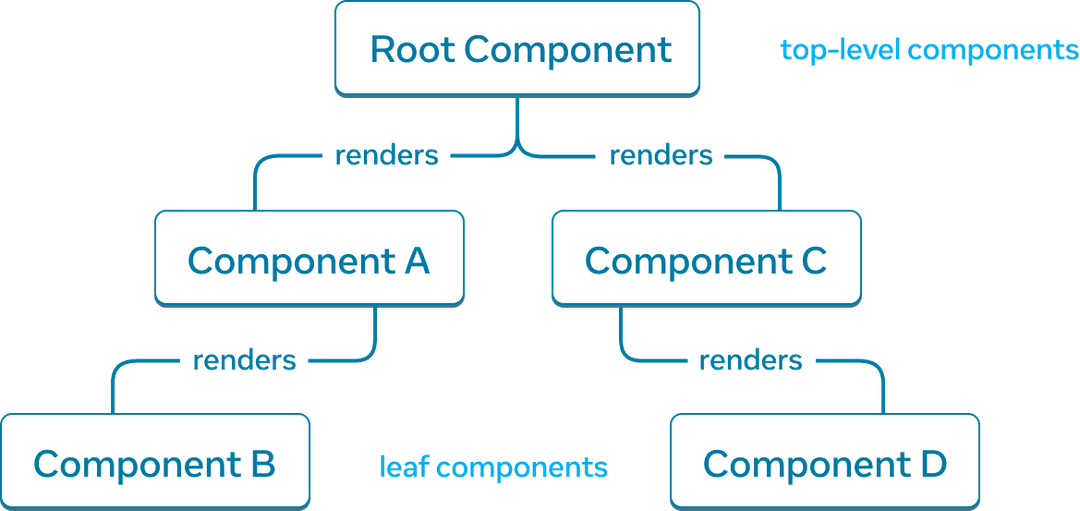
Components near the top of the tree, near the root component, are considered top-level components. Components with no child components are leaf components. This categorization of components is useful for understanding data flow and rendering performance.

The Module Dependency Tree
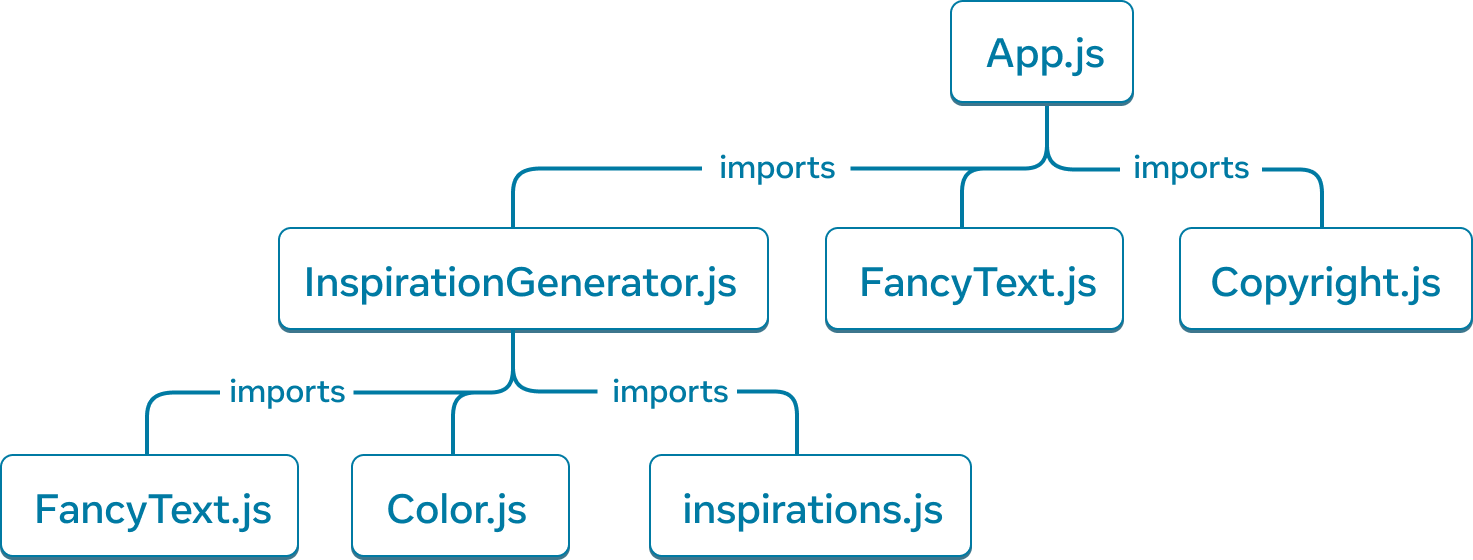
Dependency trees are useful to determine what modules are necessary to run your React app. When building a React app for production, there is typically a build step that will bundle all the necessary JavaScript to ship to the client. The tool responsible for this is called a bundler, and bundlers will use the dependency tree to determine what modules should be included.

  • Webpack
  • Vite

Props (Properties)

Props are inputs to a React component that allow data to be passed from one component to another.

  • Props are read-only and cannot be modified by the component receiving them.
  • They allow for dynamic rendering based on input data.
  • Props can be any JavaScript value, including functions, objects, and arrays.
1
<Welcome name="Sara" />

Pass props to the child component

1
2
3
4
5
6
7
8
export default function Profile() {
  return (
    <Avatar
      person={{ name: 'Lin Lanying', imageId: '1bX5QH6' }}
      size={100}
    />
  );
}

If double curly braces after person= cause confusion, recall they simply represent an object inside the JSX curlies.

Read props inside the child component

1
2
3
function Avatar({ person, size }) {
  // person and size are available here
}

Don’t miss the pair of { and } curlies inside of ( and ) when declaring props.

In fact, props are the only argument to your component! React component functions accept a single argument, a props object.

This syntax is called “destructuring” and is equivalent to reading properties from a function parameter:

1
2
3
4
5
function Avatar(props) {
  let person = props.person;
  let size = props.size;
  // ...
}

Specifying a default value for a prop

1
2
3
function Avatar({ person, size = 100 }) {
  // ...
}

Forwarding props with the JSX spread syntax

Use spread syntax with restraint. This forwards all of Profile’s props to the Avatar.

1
2
3
4
5
6
7
function Profile(props) {
  return (
    <div className="card">
      <Avatar {...props} />
    </div>
  );
}

Passing JSX as children

For example, the Card component below will receive a children prop set to <Avatar /> and render it in a wrapper div:

 1
 2
 3
 4
 5
 6
 7
 8
 9
10
11
12
13
14
15
16
17
18
19
20
21
22
23
import Avatar from './Avatar.js';

function Card({ children }) {
  return (
    <div className="card">
      {children}
    </div>
  );
}

export default function Profile() {
  return (
    <Card>
      <Avatar
        size={100}
        person={{ 
          name: 'Katsuko Saruhashi',
          imageId: 'YfeOqp2'
        }}
      />
    </Card>
  );
}

Props are immutable

Props are immutable, don’t try to “change props”. When there is a need to respond to user input (such as changing the selected color), it is necessary to “set state”.

Events

Adding event handlers

Event handlers are custom functions that are triggered in response to interactions such as clicking, hovering, focusing on form inputs, and similar actions.

Define a function and then pass it as a prop to the appropriate JSX tag.

 1
 2
 3
 4
 5
 6
 7
 8
 9
10
11
12
13
14
15
import React from 'react';

function ClickButton() {
  function handleClick() {
    alert('Button was clicked!');
  }

  return (
    <button onClick={handleClick}>
      Click Me
    </button>
  );
}

export default ClickButton;
  • Event handlers are usually defined inside your components.
  • Event handlers have names that start with handle, followed by the name of the event.

Alternatively, you can define an event handler inline in the JSX:

1
2
3
<button onClick={function handleClick() {
  alert('You clicked me!');
}}>

Or, more concisely, using an arrow function:

1
2
3
<button onClick={() => {
  alert('You clicked me!');
}}>

Passing event handlers as props

Often the parent component will need to specify a child’s event handler. To accomplish this, pass a prop that the component receives from its parent as the event handler.

Functional Components
 1
 2
 3
 4
 5
 6
 7
 8
 9
10
11
12
13
14
15
16
17
18
19
20
21
22
23
24
25
26
import React from 'react';

// Child Component
function ChildComponent({ onButtonClick }) {
  return (
    <button onClick={onButtonClick}>
      Click Me
    </button>
  );
}

// Parent Component
function ParentComponent() {
  function handleButtonClick() {
    alert('Button clicked in child component!');
  }

  return (
    <div>
      <h1>Parent Component</h1>
      <ChildComponent onButtonClick={handleButtonClick} />
    </div>
  );
}

export default ParentComponent;
  • The ParentComponent defines the handleButtonClick function.
  • The ChildComponent receives onButtonClick as a prop and attaches it to the button’s onClick event.
Class Components
 1
 2
 3
 4
 5
 6
 7
 8
 9
10
11
12
13
14
15
16
17
18
19
20
21
22
23
24
25
26
27
28
29
30
31
32
33
34
35
import React, { Component } from 'react';

// Child Component
class ChildComponent extends Component {
  render() {
    return (
      <button onClick={this.props.onButtonClick}>
        Click Me
      </button>
    );
  }
}

// Parent Component
class ParentComponent extends Component {
  constructor(props) {
    super(props);
    this.handleButtonClick = this.handleButtonClick.bind(this);
  }

  handleButtonClick() {
    alert('Button clicked in child component!');
  }

  render() {
    return (
      <div>
        <h1>Parent Component</h1>
        <ChildComponent onButtonClick={this.handleButtonClick} />
      </div>
    );
  }
}

export default ParentComponent;
  • The ParentComponent defines the handleButtonClick method and binds it in the constructor.
  • The ChildComponent receives onButtonClick as a prop and attaches it to the button’s onClick event.

Event Propagation

Event Bubbling

Event bubbling is a type of event propagation where the event starts from the target element and bubbles up to its parent elements. In React, this is the default behavior for events.

 1
 2
 3
 4
 5
 6
 7
 8
 9
10
11
12
13
14
15
16
17
18
19
20
import React from 'react';

function ParentComponent() {
  function handleParentClick() {
    alert('Parent clicked!');
  }

  function handleButtonClick(event) {
    alert('Button clicked!');
    // event.stopPropagation(); // Uncomment to stop bubbling
  }

  return (
    <div onClick={handleParentClick} style={{ padding: '20px', border: '1px solid black' }}>
      <button onClick={handleButtonClick}>Click Me</button>
    </div>
  );
}

export default ParentComponent;

The handleButtonClick function is called when the button is clicked, followed by handleParentClick due to bubbling.

Event Capturing
 1
 2
 3
 4
 5
 6
 7
 8
 9
10
11
12
13
14
15
16
17
18
19
20
21
22
23
24
25
26
27
import React from 'react';

function ParentComponent() {
  function handleParentClickCapture() {
    alert('Parent capture clicked!');
  }

  function handleParentClick() {
    alert('Parent clicked!');
  }

  function handleButtonClick(event) {
    alert('Button clicked!');
  }

  return (
    <div
      onClickCapture={handleParentClickCapture}
      onClick={handleParentClick}
      style={{ padding: '20px', border: '1px solid black' }}
    >
      <button onClick={handleButtonClick}>Click Me</button>
    </div>
  );
}

export default ParentComponent;

React onClickCapture is an event handler that gets triggered whenever an element is clicked. Similar to onClick, but the difference is that onClickCapture acts in the capture phase, whereas onClick acts in the bubbling phase, i.e., phases of an event.

Stopping propagation
 1
 2
 3
 4
 5
 6
 7
 8
 9
10
11
12
13
14
15
16
17
18
19
20
import React from 'react';

function ParentComponent() {
  function handleParentClick() {
    alert('Parent clicked!');
  }

  function handleButtonClick(event) {
    alert('Button clicked!');
    event.stopPropagation(); // Stop the event from bubbling up to the parent
  }

  return (
    <div onClick={handleParentClick} style={{ padding: '20px', border: '1px solid black' }}>
      <button onClick={handleButtonClick}>Click Me</button>
    </div>
  );
}

export default ParentComponent;

Clicking the button will trigger handleButtonClick, but handleParentClick will not be triggered because stopPropagation() is called.

Preventing Default Behavior
 1
 2
 3
 4
 5
 6
 7
 8
 9
10
11
12
13
14
15
16
17
18
19
20
import React from 'react';

function FormComponent() {
  function handleSubmit(event) {
    event.preventDefault(); // Prevent the form from submitting
    alert('Form submitted!');
  }

  return (
    <form onSubmit={handleSubmit}>
      <label>
        Name:
        <input type="text" name="name" />
      </label>
      <button type="submit">Submit</button>
    </form>
  );
}

export default FormComponent;
  • The handleSubmit function is called when the form is submitted.
  • preventDefault() is called to prevent the form from performing its default submit action.

State

State is a built-in object in React components that allows components to maintain and manage local data. Components need to “remember” things.

Why state is essential

When a regular variable isn’t enough:

  • Local variables don’t persist between renders. When React renders this component a second time, it renders it from scratch—it doesn’t consider any changes to the local variables.
  • Changes to local variables won’t trigger renders. React doesn’t realize it needs to render the component again with the new data.

To update a component with new data, two things need to happen:

  • Retain the data between renders.
  • Trigger React to render the component with new data (re-rendering).

The useState Hook provides those two things:

  • A state variable to retain the data between renders.
  • A state setter function to update the variable and trigger React to render the component again.

Adding a state variable

 1
 2
 3
 4
 5
 6
 7
 8
 9
10
11
12
13
14
import { useState } from 'react';

function Counter() {
  const [count, setCount] = useState(0);

  return (
    <div>
      <p>You clicked {count} times</p>
      <button onClick={() => setCount(count + 1)}>
        Click me
      </button>
    </div>
  );
}
  • count is a state variable and setCount is the setter function.
  • The [ and ] syntax here is called array destructuring.
  • The only argument to useState is the initial value of your state variable.

State is isolated and private

State is local to a component instance. In other words, if the same component is rendered twice, each instance will have its own isolated state. Changes to the state of one instance will not affect the state of the other.

 1
 2
 3
 4
 5
 6
 7
 8
 9
10
11
12
function Gallery() {
  const [index, setIndex] = useState(0);
  const [showMore, setShowMore] = useState(false);
}
function Page() {
  return (
    <div className="Page">
      <Gallery />
      <Gallery />
    </div>
  );
}

State as a Snapshot

State behaves more like a snapshot. Setting state does not directly modify the existing state variable but instead triggers a re-render of the component.

State should be treated as immutable. When updating state, always create a new state object rather than modifying the existing one.

Each time the state changes, the component re-renders, showing the new snapshot of the state variable. Setting state requests a new render.

1
setNumber(number + 5);

A state variable’s value never changes within a render, even if its event handler’s code is asynchronous. Inside that render’s onClick, the value of number continues to be 0 even after setNumber(number + 5) was called.

React keeps the state values “fixed” within one render’s event handlers.

Queueing a Series of State Updates

React batches state updates
 1
 2
 3
 4
 5
 6
 7
 8
 9
10
11
12
13
14
15
16
import { useState } from 'react';

export default function Counter() {
  const [number, setNumber] = useState(0);

  return (
    <>
      <h1>{number}</h1>
      <button onClick={() => {
        setNumber(number + 1);      // setNumber(0 + 1);
        setNumber(number + 1);      // setNumber(0 + 1);
        setNumber(number + 1);      // setNumber(0 + 1);
      }}>+3</button>
    </>
  )
}

React waits until all code in the event handlers has run before processing your state updates.

Updating the same state multiple times before the next render
1
2
3
4
5
<button onClick={() => {
    setNumber(n => n + 1);
    setNumber(n => n + 1);
    setNumber(n => n + 1);
}}>+3</button>

Here, n => n + 1 is called an updater function. React queues this function to be processed after all the other code in the event handler has run.

queued update n returns
n => n + 1 0 0 + 1 = 1
n => n + 1 1 1 + 1 = 2
n => n + 1 2 2 + 1 = 3

React stores 3 as the final result and returns it from useState.

Mix 1
1
2
3
4
<button onClick={() => {
  setNumber(number + 5);
  setNumber(n => n + 1);
}}>

During the next render, React goes through the state queue:

queued update n returns
”replace with 5 0 (unused) 5
n => n + 1 5 5 + 1 = 6

React stores 6 as the final result and returns it from useState.

Mix 2
1
2
3
4
5
<button onClick={() => {
    setNumber(number + 5);
    setNumber(n => n + 1);
    setNumber(42);
}}>Increase the number</button>
queued update n returns
”replace with 5 0 (unused) 5
n => n + 1 5 5 + 1 = 6
”replace with 42 6 (unused) 42

Then React stores 42 as the final result and returns it from useState.

Naming conventions

It’s common to name the updater function argument by the first letters of the corresponding state variable:

1
2
3
setEnabled(e => !e);
setLastName(ln => ln.reverse());
setFriendCount(fc => fc * 2);

If you prefer more verbose code, another common convention is to repeat the full state variable name, like setEnabled(enabled => !enabled), or to use a prefix like setEnabled(prevEnabled => !prevEnabled).

Updating Objects in State

So far you’ve been working with numbers, strings, and booleans. These kinds of JavaScript values are “immutable”, meaning unchangeable or “read-only”. You can trigger a re-render to replace a value.

State can hold any kind of JavaScript value, including objects. When updating an object, it is necessary to create a new object (or make a copy of an existing one) and then set the state to use that new object.

Treat state as read-only

Now consider an object in state:

1
const [position, setPosition] = useState({ x: 0, y: 0 });

However, although objects in React state are technically mutable, you should treat them as if they were immutable—like numbers, booleans, and strings. Instead of mutating them, you should always replace them.

To actually trigger a re-render in this case, create a new object and pass it to the state setting function:

1
2
3
4
5
6
onPointerMove={e => {
  setPosition({
    x: e.clientX,
    y: e.clientY
  });
}}
Copying objects with the spread syntax

Often, it is necessary to include existing data as part of the new object being created. The ... object spread syntax can be used to avoid copying each property separately.

1
2
3
4
setPerson({
  ...person, // Copy the old fields
  firstName: e.target.value // But override this one
});

Note that the ... spread syntax is “shallow”—it only copies things one level deep. This makes it fast, but it also means that if you want to update a nested property, you’ll have to use it more than once.

Updating a nested object:

1
2
3
const nextArtwork = { ...person.artwork, city: 'New Delhi' };
const nextPerson = { ...person, artwork: nextArtwork };
setPerson(nextPerson);

Or, written as a single function call:

1
2
3
4
5
6
7
setPerson({
  ...person, // Copy other fields
  artwork: { // but replace the artwork
    ...person.artwork, // with the same one
    city: 'New Delhi' // but in New Delhi!
  }
});
Write concise update logic with Immer

If the state is deeply nested, it may be beneficial to consider flattening it. Immer is a popular library that allows for writing with a convenient but mutating syntax while handling the creation of copies automatically.

Updating Arrays in State

Arrays are mutable in JavaScript, but they should be treated as immutable when stored in state. Similarly to objects, when updating an array stored in state, it is necessary to create a new array (or make a copy of an existing one) and then set the state to use the new array.

Create a new array which contains the existing items and a new item at the end. There are multiple ways to do this, but the easiest one is to use the ... array spread syntax:

1
2
3
4
5
6
setArtists( // Replace the state
  [ // with a new array
    ...artists, // that contains all the old items
    { id: nextId++, name: name } // and one new item at the end
  ]
);

The array spread syntax also lets you prepend an item by placing it before the original ...artists:

1
2
3
4
setArtists([
  { id: nextId++, name: name },
  ...artists // Put old items at the end
]);
Removing from an array
1
2
3
setArtists(
  artists.filter(a => a.id !== artist.id)
);
Transforming an array
 1
 2
 3
 4
 5
 6
 7
 8
 9
10
const nextCounters = counters.map((c, i) => {
if (i === index) {
    // Increment the clicked counter
    return c + 1;
} else {
    // The rest haven't changed
    return c;
}
});
setCounters(nextCounters);
Inserting into an array
1
2
3
4
5
6
7
8
9
const nextArtists = [
    // Items before the insertion point:
    ...artists.slice(0, insertAt),
    // New item:
    { id: nextId++, name: name },
    // Items after the insertion point:
    ...artists.slice(insertAt)
];
setArtists(nextArtists);
Updating objects inside arrays
1
2
3
4
5
6
7
8
9
setMyList(myList.map(artwork => {
  if (artwork.id === artworkId) {
    // Create a *new* object with changes
    return { ...artwork, seen: nextSeen };
  } else {
    // No changes
    return artwork;
  }
}));
Write concise update logic with Immer
1
2
3
4
updateMyTodos(draft => {
  const artwork = draft.find(a => a.id === artworkId);
  artwork.seen = nextSeen;
});

Lifecycle Methods

Lifecycle methods are special methods in class components that allow you to run code at specific points in a component’s lifecycle.

  • Common lifecycle methods include componentDidMount, componentDidUpdate, and componentWillUnmount.
  • They are used for side effects, such as fetching data, subscribing to events, or cleaning up resources.
 1
 2
 3
 4
 5
 6
 7
 8
 9
10
11
12
13
14
15
16
17
class MyComponent extends React.Component {
  componentDidMount() {
    // Code to run after the component mounts
  }

  componentDidUpdate(prevProps, prevState) {
    // Code to run after the component updates
  }

  componentWillUnmount() {
    // Code to run before the component unmounts
  }

  render() {
    return <div>Hello, World!</div>;
  }
}

Hooks

In React, useState, as well as any other function starting with “use”, is called a Hook.

Hooks are special functions that are only available while React is rendering.

Hooks are functions that let you use state and other React features in functional components.

  • The most commonly used hooks are useState and useEffect.
  • Hooks can only be used at the top level of functional components or custom hooks.
  • They enable functional components to have state and side effects.
 1
 2
 3
 4
 5
 6
 7
 8
 9
10
11
12
13
function Timer() {
  const [seconds, setSeconds] = useState(0);

  useEffect(() => {
    const interval = setInterval(() => {
      setSeconds(s => s + 1);
    }, 1000);

    return () => clearInterval(interval);
  }, []);

  return <div>Seconds: {seconds}</div>;
}

Context

Context provides a way to share values between components without passing props through every level of the tree.

  • Useful for global settings, themes, or user authentication.
  • React.createContext creates a context object.
  • Context.Provider and Context.Consumer are used to provide and consume the context value.
 1
 2
 3
 4
 5
 6
 7
 8
 9
10
11
12
13
14
15
16
17
18
19
20
21
22
23
24
25
const ThemeContext = React.createContext('light');

function App() {
  return (
    <ThemeContext.Provider value="dark">
      <Toolbar />
    </ThemeContext.Provider>
  );
}

function Toolbar() {
  return (
    <div>
      <ThemedButton />
    </div>
  );
}

function ThemedButton() {
  return (
    <ThemeContext.Consumer>
      {theme => <button className={theme}>Button</button>}
    </ThemeContext.Consumer>
  );
}

React Router

React Router is a library for handling navigation and routing in React applications.

  • Enables single-page applications (SPA) by handling client-side routing.
  • Provides components like BrowserRouter, Route, Link, and Switch.
  • Routes can be nested, dynamic, and parameterized.
 1
 2
 3
 4
 5
 6
 7
 8
 9
10
11
12
13
14
15
16
17
18
19
20
21
22
23
24
25
import { BrowserRouter as Router, Route, Link, Switch } from 'react-router-dom';

function App() {
  return (
    <Router>
      <nav>
        <Link to="/">Home</Link>
        <Link to="/about">About</Link>
      </nav>

      <Switch>
        <Route exact path="/" component={Home} />
        <Route path="/about" component={About} />
      </Switch>
    </Router>
  );
}

function Home() {
  return <h2>Home</h2>;
}

function About() {
  return <h2>About</h2>;
}

Higher-Order Components (HOCs)

HOCs are advanced techniques in React for reusing component logic. They are functions that take a component and return a new component.

  • HOCs can add functionality to existing components.
  • They are often used for cross-cutting concerns like logging, authorization, and theming.
  • Common HOCs include withRouter from React Router and connect from Redux.
 1
 2
 3
 4
 5
 6
 7
 8
 9
10
11
12
13
function withLogging(WrappedComponent) {
  return class extends React.Component {
    componentDidMount() {
      console.log('Component mounted');
    }

    render() {
      return <WrappedComponent {...this.props} />;
    }
  };
}

const HelloWithLogging = withLogging(Hello);

Redux

Redux is a state management library commonly used with React to manage the global state of an application. If you want to keep state-specific to your HOC then use state. Now in the function component, we use useState. If you want to share data throughout the application use redux state. The Redux store is the database of front-end.

  • It follows a unidirectional data flow and uses a central store.
  • Actions and reducers are used to manage state changes.
  • Middleware like redux-thunk or redux-saga can be used for handling side effects.
 1
 2
 3
 4
 5
 6
 7
 8
 9
10
11
12
13
14
15
16
17
18
19
import { createStore } from 'redux';

const initialState = { count: 0 };

function reducer(state = initialState, action) {
  switch (action.type) {
    case 'INCREMENT':
      return { count: state.count + 1 };
    case 'DECREMENT':
      return { count: state.count - 1 };
    default:
      return state;
  }
}

const store = createStore(reducer);

store.dispatch({ type: 'INCREMENT' });
console.log(store.getState()); // { count: 1 }

Reference guides